
Integration Settings
Create and rotate API Keys
Updated November 20, 2026 · Club admins
An API Keys entry in Integration Settings is what every Waresport MCP connector uses. The key starts with `wsp_live_` and has the same permissions as the club admin who created it. Keep it private — it can read club data and stage changes.
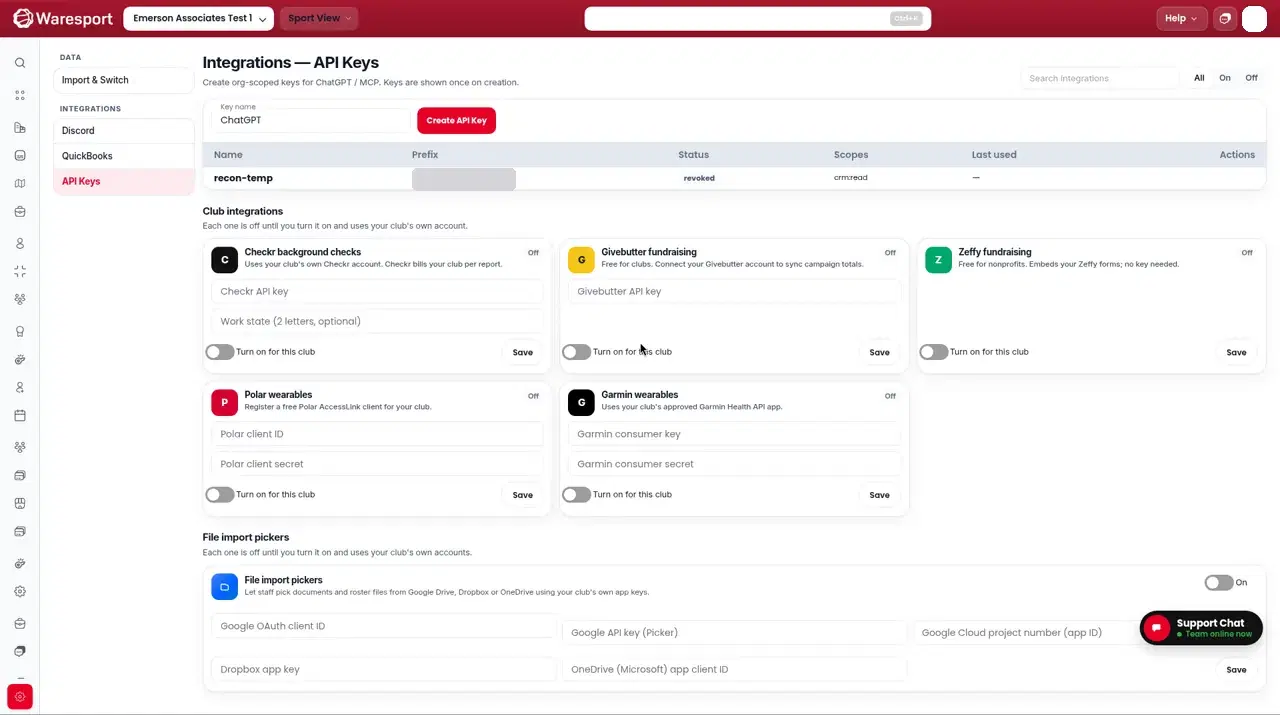
Open API Keys
- 1In the admin panel, open Integration Settings from the account menu.
- 2Select the API Keys tab.
- 3Create a key if you do not already have one, then copy it. The full key is shown once at creation.
Use the key in an AI tool
- For ChatGPT and Grok.com, the key goes in the server URL as
?api_key=.... See Connect Waresport to ChatGPT and Connect Waresport to Grok. - For sign-in clients such as Claude, Gemini, Microsoft Copilot, Mistral Le Chat, Perplexity, Cursor, and VS Code, you paste the key on the Waresport Connect page and click Allow.
- For the Grok API, send the key as an
Authorization: Bearerheader to the/rpcendpoint.
If you rotate or revoke a key, existing connections that still use the old key will stop working the next time they call Waresport.
FAQs
- Where is API Keys in the admin panel?
- Open **Integration Settings**, then the **API Keys** tab. The Waresport Connect page describes this path as Admin Panel → Settings → Integrations → API keys.
- Can I use one key in more than one AI tool?
- Yes. The same `wsp_live_` key works in every supported MCP client. Revoking it disconnects every tool that uses it.