
Import & Switch
Import a roster with Import & Switch
Updated November 20, 2026 · Club admins
Import & Switch brings a roster into Waresport from a spreadsheet. Nothing is emailed or charged until you choose to do that later. Open it from the account menu, in the same Integrations section as Integration Settings.
Choose a source
- 1Open Import & Switch.
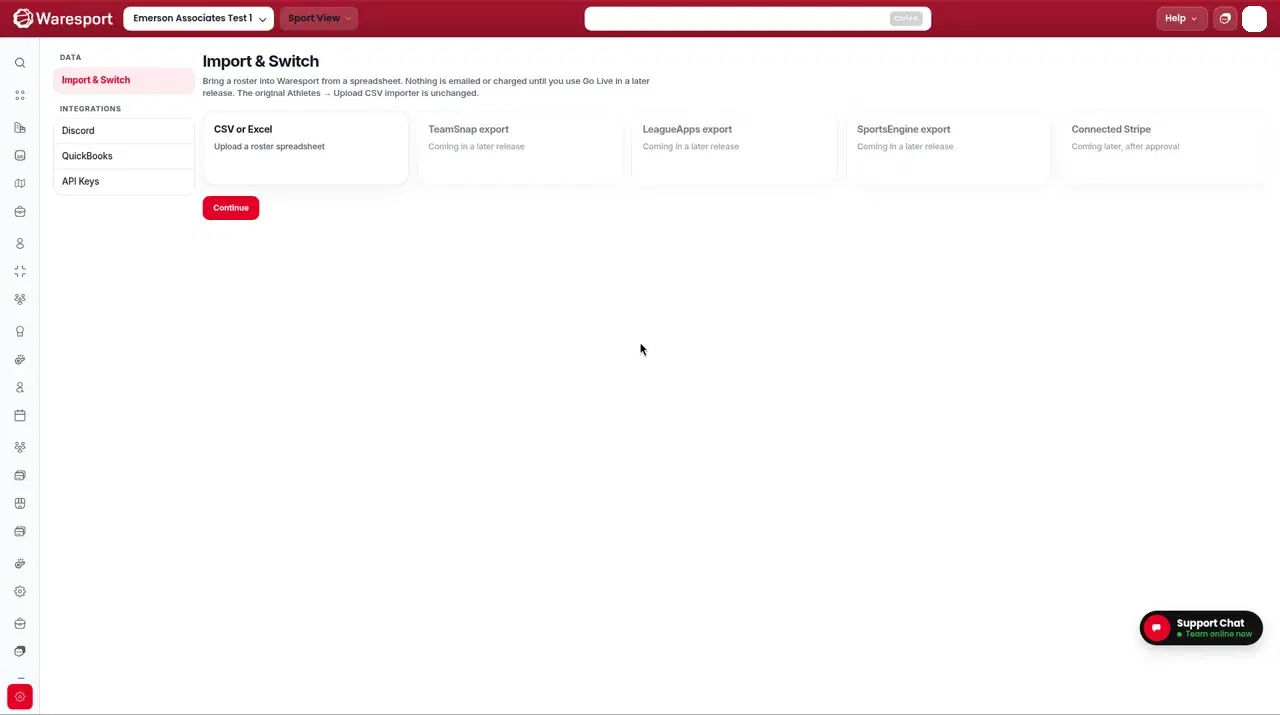
- 2On the source step, choose CSV or Excel. TeamSnap export, LeagueApps export, and SportsEngine export are labeled Coming in a later release. Connected Stripe is labeled Coming later, after approval.
- 3Upload your file and click Continue.
Map columns
- 1Optionally click Download Waresport template and fill that spreadsheet.
- 2For each Waresport field, pick the matching File column.
- 3Required name fields are First Name and Last Name (or the legacy Athlete Name field). Other mappable fields include Email, Date of Birth, Phone Number, parent name and contact fields, Teams, Type, Position, Jersey Number, and Membership Plan.
Review, dry run, and commit
The preview table has columns Athlete, Contact, Team, Action, and Review. Counts show Create, Merge, and Skip. On a row you can choose Create, Merge, or Skip. Merge uses a suggested existing athlete when one is offered.
- 1Click Dry run. You should see “Dry run finished. No athletes were written.”
- 2Click Commit import only after the dry run looks right.
- 3When it finishes, the page shows Import complete with Created, Merged, Skipped, and Failed counts, and this message: “No emails were sent and no charges were made. Invites and payment requests will arrive in a later Go Live step.”
You can click Undo import to remove athletes created by that batch, or Start another import.
Capture from app.waresport.com — do not use a mock.
FAQs
- Does this send invites or charge families?
- No. After commit, the page states that no emails were sent and no charges were made.
- What if I need to import from TeamSnap or SportsEngine directly?
- Those source cards are visible but not available yet. Use a **CSV or Excel** export from the other system, then map the columns.