
Athletes
Add and manage athletes
Updated November 20, 2026 · Club admins
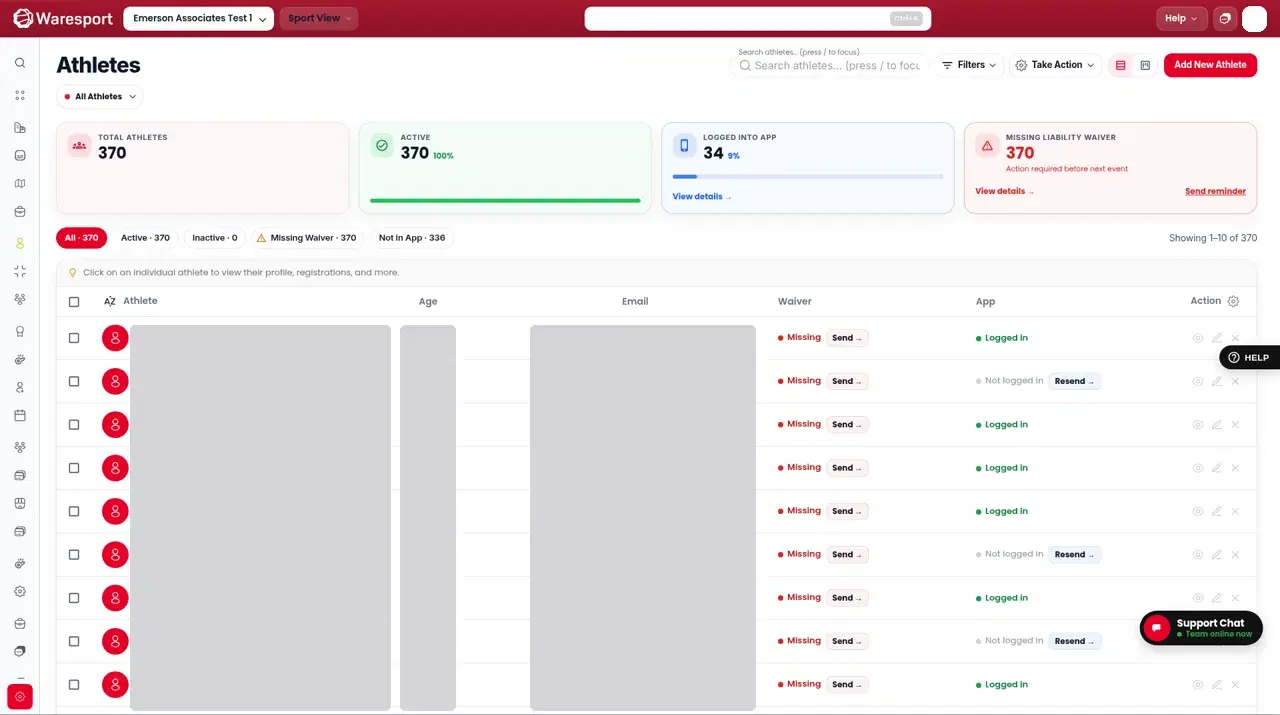
The Athletes page is the club roster. The heading is Athletes, and you can work from the All Athletes view.
Open Athletes and add someone
- 1In the admin sidebar, open Athletes.
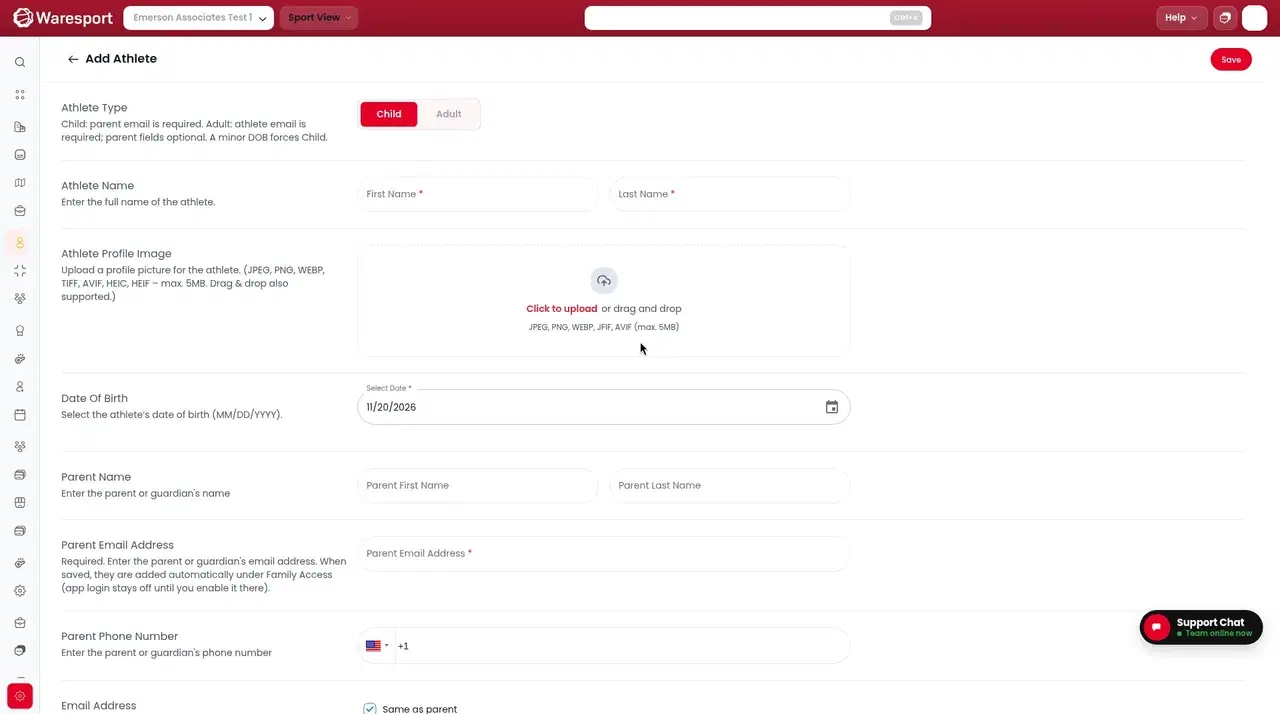
- 2Click Add New Athlete. That opens the Add Athlete page.
Filter the roster
Filter chips on the page include All, Active, Inactive, Missing Waiver, and Not in App. You can also open advanced filters and switch between list view and Kanban view.
Export or send a report
From All Athletes you can:
- Click Export CSV to download the roster.
- Click Send Development Report when you want to send that report.
For a spreadsheet import, use Upload CSV on this page, or use Import & Switch for the review-and-dry-run flow. See Upload an Athletes CSV and Import a roster with Import & Switch.
FAQs
- What is the difference between Add New Athlete and Upload CSV?
- Add New Athlete** opens the **Add Athlete** form for one person. **Upload CSV** imports a spreadsheet on the **Athletes** page. **Import & Switch** is a separate wizard with mapping, a dry run, and undo.