
Payments
Use the Payments page
Updated November 20, 2026 · Club admins
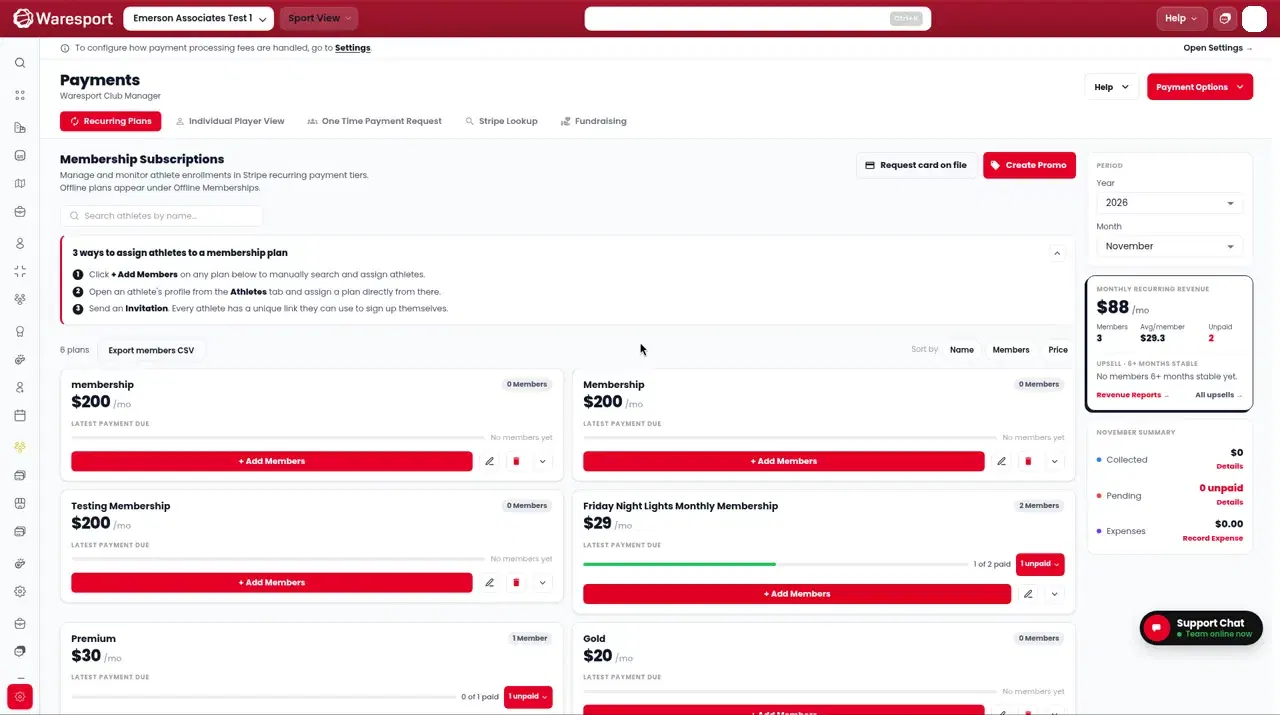
The sidebar item is Payments. The top tabs are Recurring Plans, Individual Player View, One Time Payment Request, Offline Memberships, and Stripe Lookup.
Open the right tab
- 1In the admin sidebar, open Payments.
- 2Choose a top tab:
- Recurring Plans — membership plans. Use Create Recurring Memberships to add a plan.
- Individual Player View — one athlete’s payment record at a time.
- One Time Payment Request — with subtabs One Time Requests and Scheduled Requests. Use Create Payment Request to create one.
- Offline Memberships — offline membership tiers, when that option is enabled for the club.
- Stripe Lookup — look up a Stripe payment.
Other actions on the page include Refund, How Payments Work, Play Tour, and Automatic Reminders.
Payment statuses
On payment details you can filter or read status as Paid, Pending, or Overdue. You can also mark a request as paid offline from One Time Payment Request.
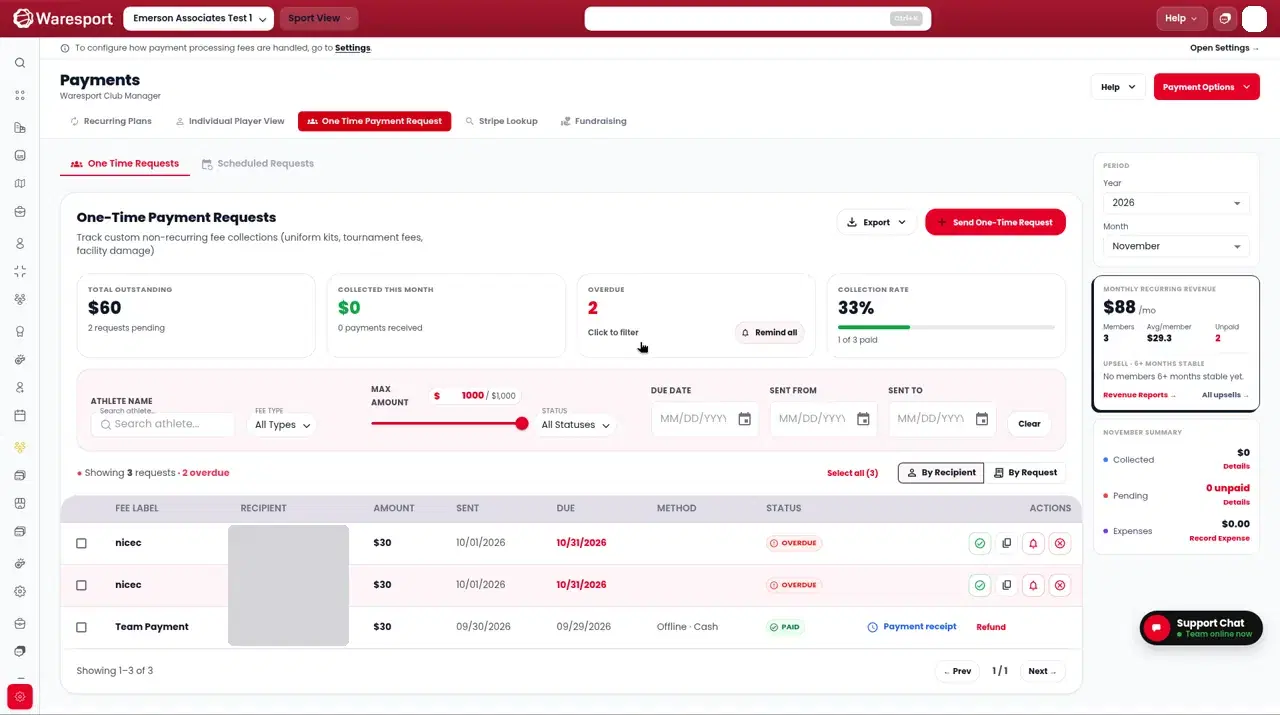
Recurring Plans can show overdue members and send a reminder to an overdue member.
FAQs
- Does Import & Switch collect payment?
- No. After an import, no charges are made. Create plans or requests later on **Payments**.
- Where do I create a recurring plan?
- On **Payments**, stay on **Recurring Plans** and use **Create Recurring Memberships**.