
Connect your AI
Connect Waresport to VS Code
Updated November 20, 2026 · Club admins
Visual Studio Code can connect to Waresport as an OAuth MCP client (including the vscode.dev redirect used by VS Code / GitHub Copilot). Add the secure MCP URL, then paste your `wsp_live_` key on the Waresport Connect page and click Allow.
Create an API key
- 1In the admin panel, go to Integration Settings and open the API Keys tab.
- 2Create a key if you do not have one, and copy it.
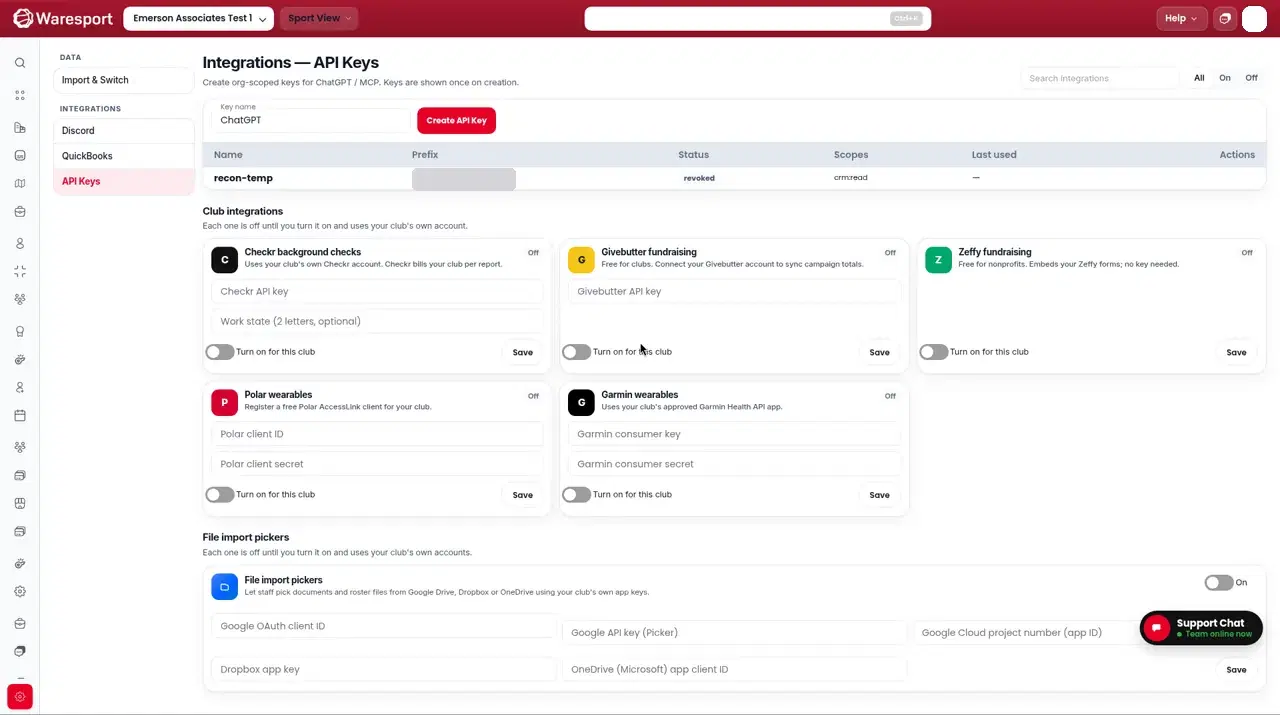
Add the VS Code connector
- 1In VS Code, add a custom MCP server and paste this Server URL:
https://0jvw8mre8l.execute-api.us-east-2.amazonaws.com/api/v1/mcp/secure
- 1Complete sign-in on the Waresport Connect page: paste your
wsp_live_key and click Allow.
Illustration of the Waresport Connect page — not a vendor screenshot
Connect VS Code to Waresport
VS Code is asking to use your club's Waresport data through the Waresport MCP connector. After you approve, you'll be sent back to the app.
Use the key from Admin Panel → Settings → Integrations → API keys. It's checked here and never shared with VS Code. It gets the same permissions as the key.
If VS Code returns to a local address, the Connect page warns you that the app runs on your own computer. Only continue if you started the connection yourself.
This guide does not invent VS Code Command Palette or settings names. Use the MCP server UI in VS Code and the /secure URL above.
FAQs
- Is this the same as Microsoft Copilot Studio?
- No. Copilot Studio also uses `/secure` and OAuth discovery, but it is a different product. VS Code / GitHub Copilot uses the VS Code redirects. See [Connect Waresport to Microsoft Copilot](/support/connect-your-ai/connect-waresport-to-microsoft-copilot) for Copilot Studio.